

Instructions for registering / login to our lunch portal:
Questions or concerns, please email us: kitchen@mountstmary.org
All cafeteria accounts are managed via the MyKidsSpending. Using the online portal, you can set
personal alerts, make payments, view transactions, auto-replenish, and more.
Get started by going to MyKidsSpending
1) Create your parent account prior to adding your kids.
2) Log back into your account using your newly created account info.
3) Click on “Add Student” and input the school zipcode and select the school.
4) Use the Name as it appears on cafeteria alerts and the student ID to complete the process.
5) Add additional students as needed.
6) Add a payment source. Please follow the steps below.
7) Establish your Auto-Debit enrollment. Please follow the steps below
Payment source instructions (Click to expand)
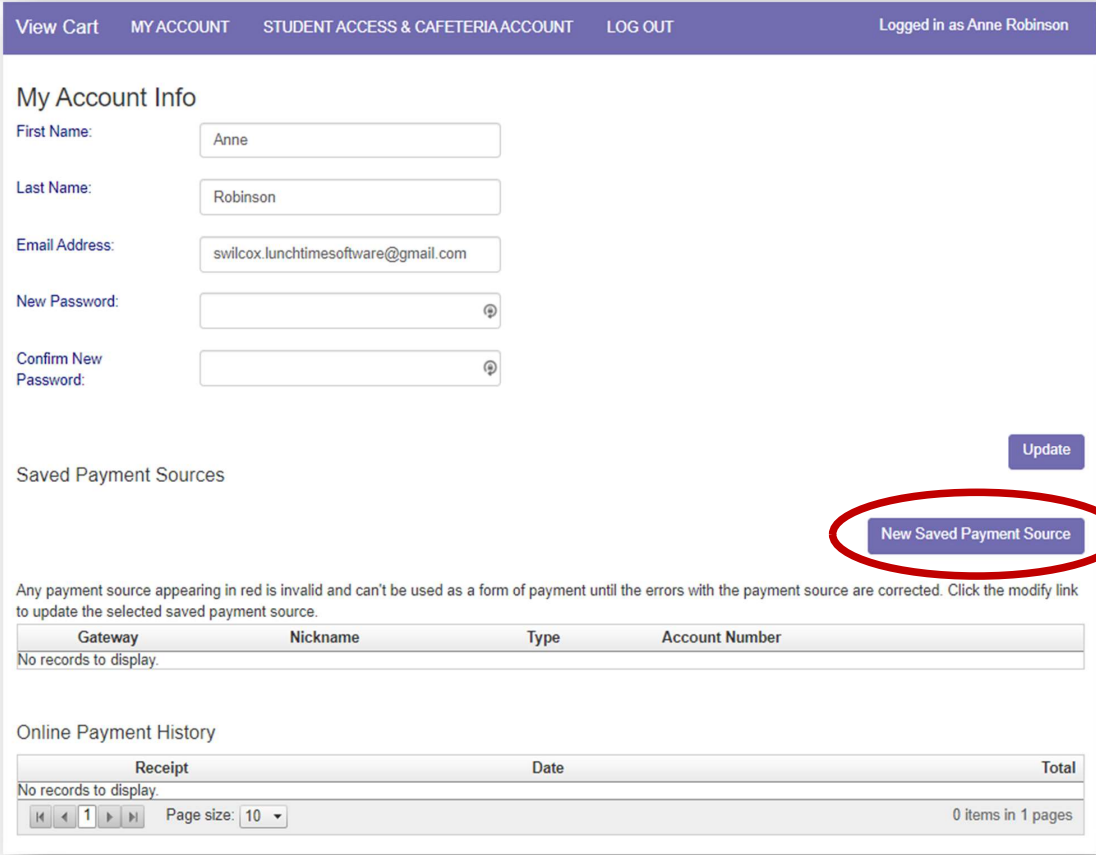
On the My Account Info page, click the New Saved Payment Source button.
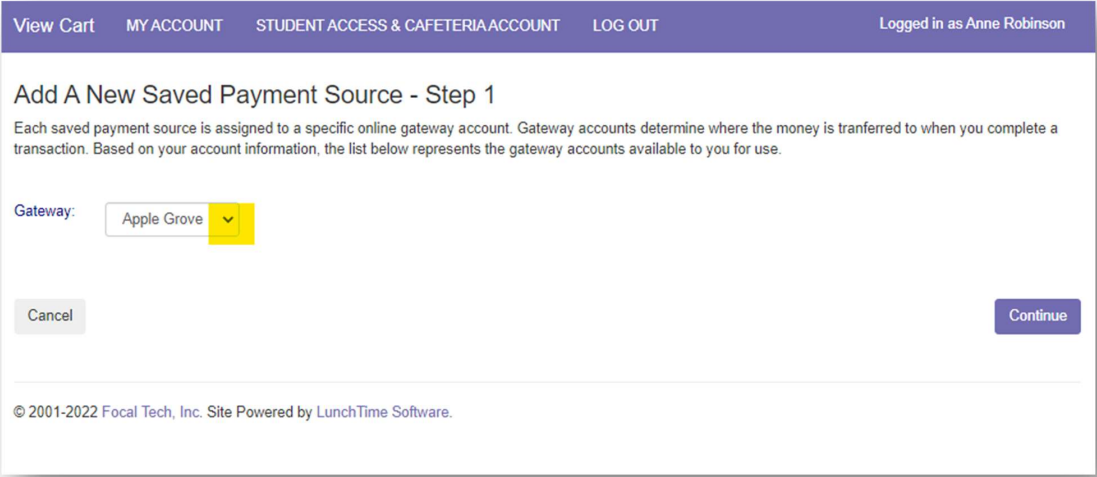
Choose the school Gateway that will receive the payments from the this payment source.
Each saved payment source is assigned to a specific online gateway account. Gateway accounts determine where the money is transferred to when you complete a transaction.
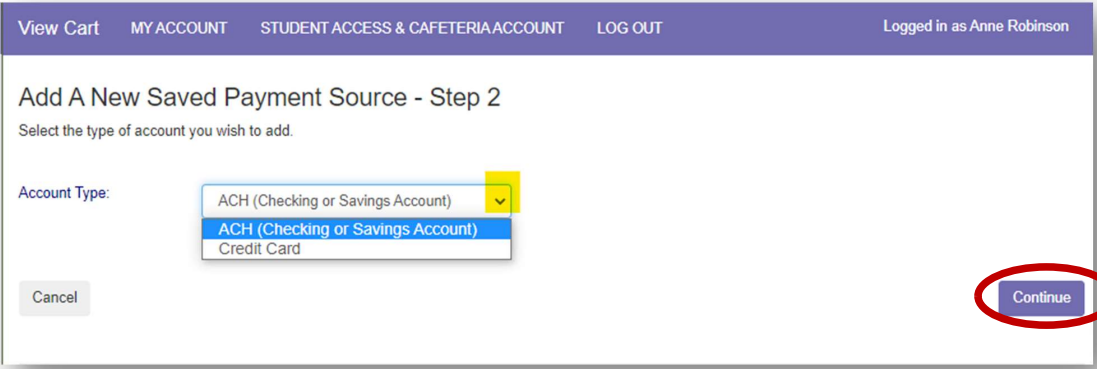
Saved Payment Source – ACH (Checking or Savings Account):
Select ACH (Checking or Savings Account) from the dropdown list
Click Continue
Enter your account information. The Nickname will be used to identify this card in your saved payment
list.
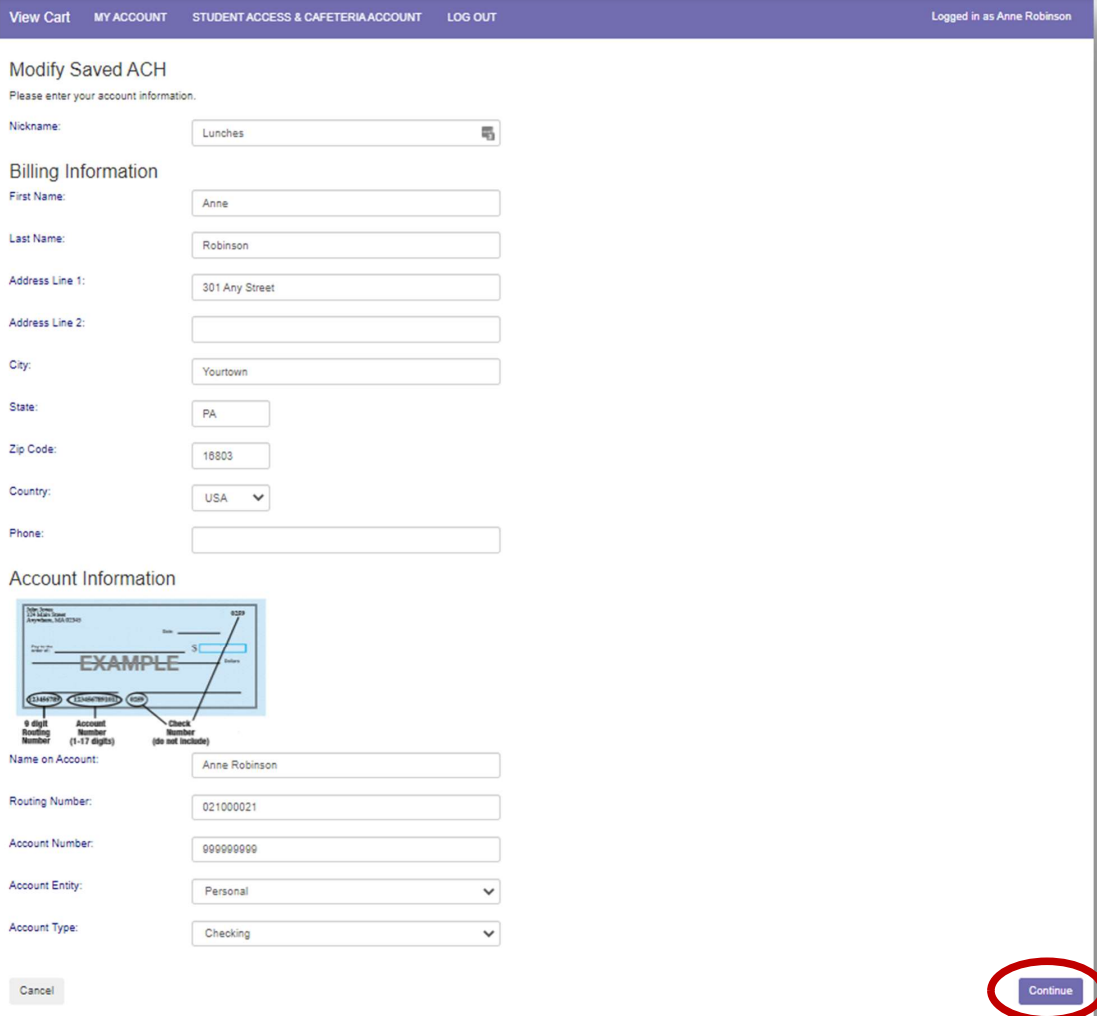
Click Continue to be returned to the My Account Info page
Setting Email Reminders/Auto-Replenish (Click to expand)
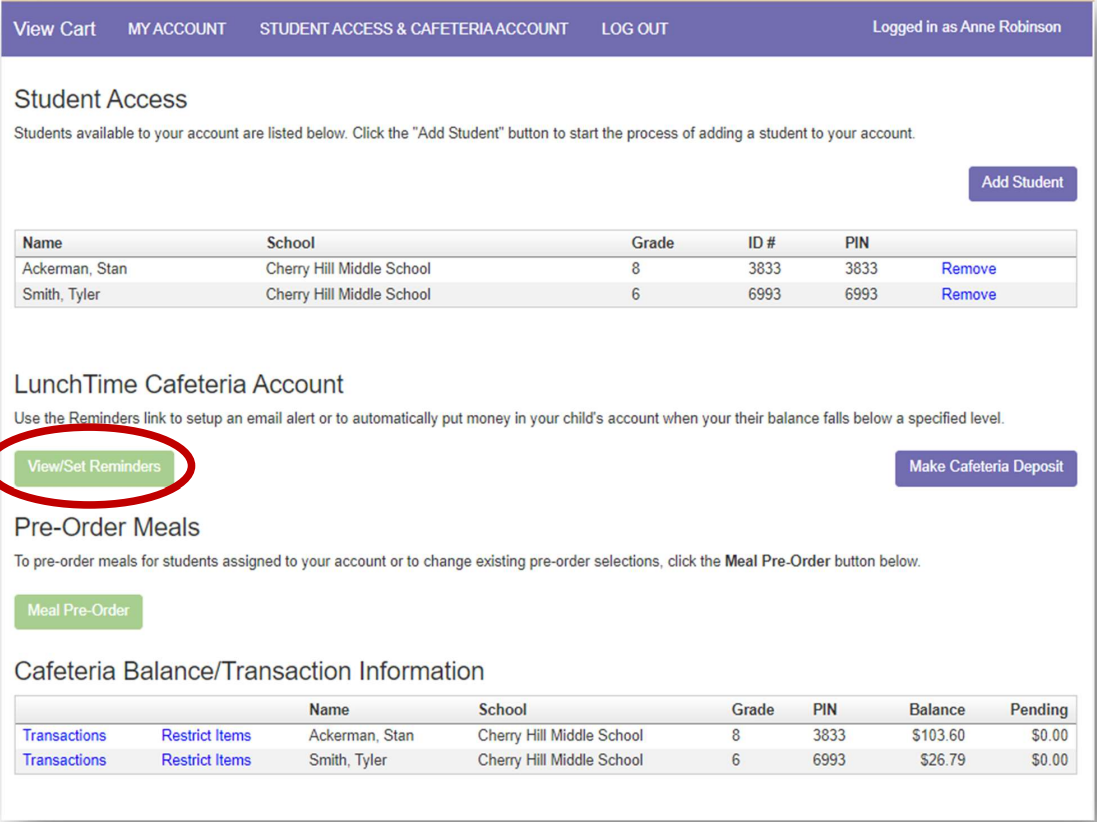
Users can establish thresholds for each student and receive either email reminders or automatic payments when the threshold has been reached.
Under the LunchTime Cafeteria Account section, Click on View/Set Reminders.
Auto Replenish
(You must have a saved payment source to use this Reminder Type)
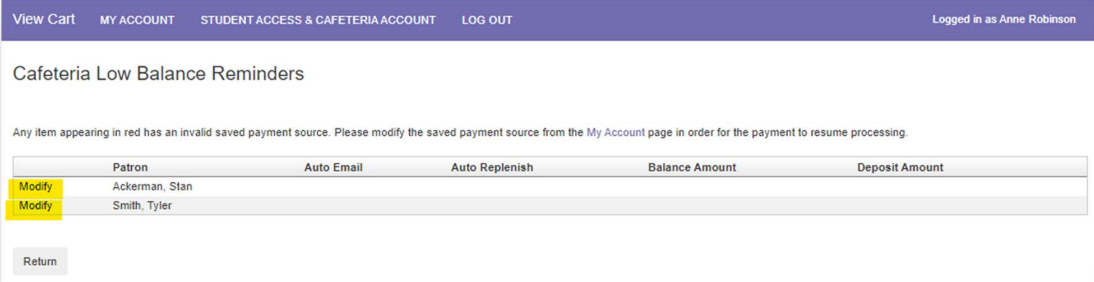
Click Modify next to the Patron name.
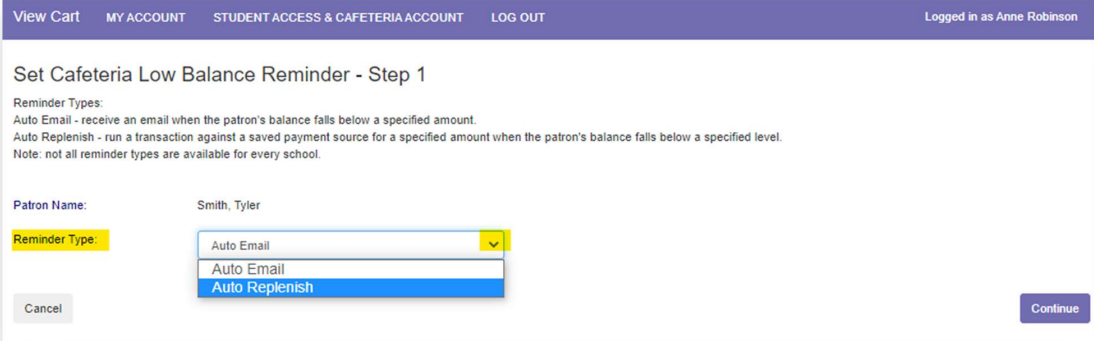
Choose Auto Replenish from the Reminder Type dropdown list to trigger an automatic deposit when the
patron’s balance falls below a specified level.
Click Continue
Enter the Balance Level that will trigger the Auto Replenish.
Choose the Saved Payment Source to be used for the payment.
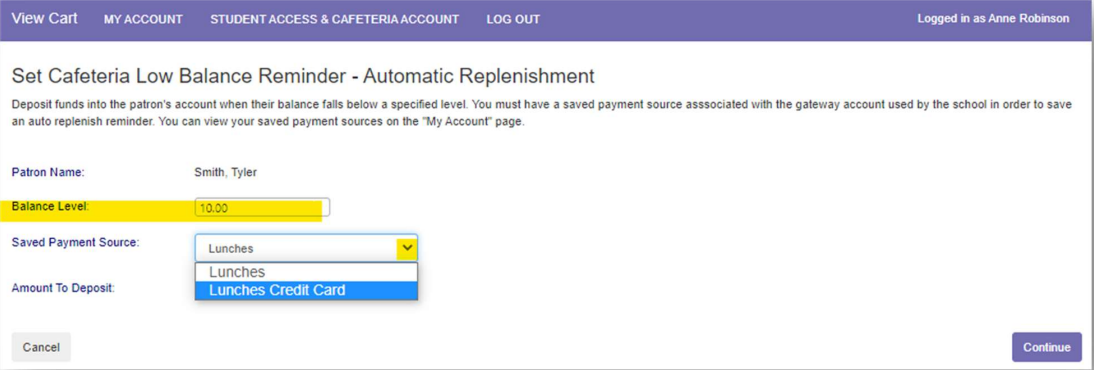
Enter the Amount to be deposited.
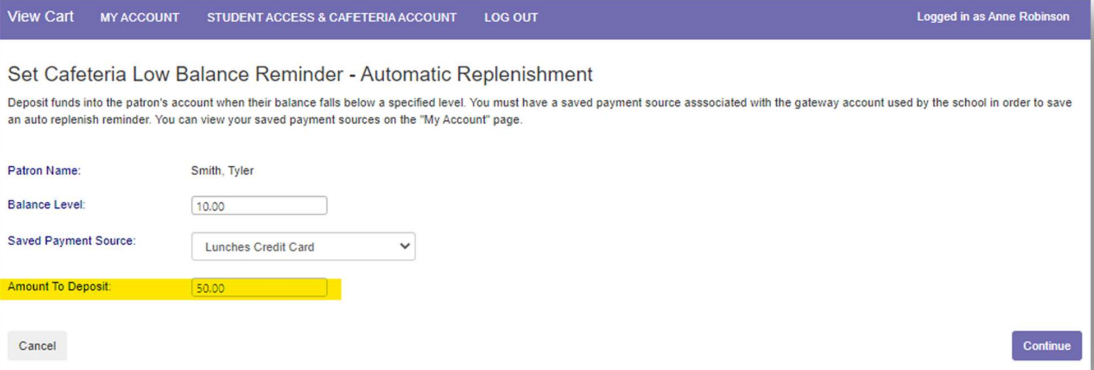
Click Continue
Verify the replenishment information
Review the payment information for accuracy, check the box confirming that you accept the fees for this transaction
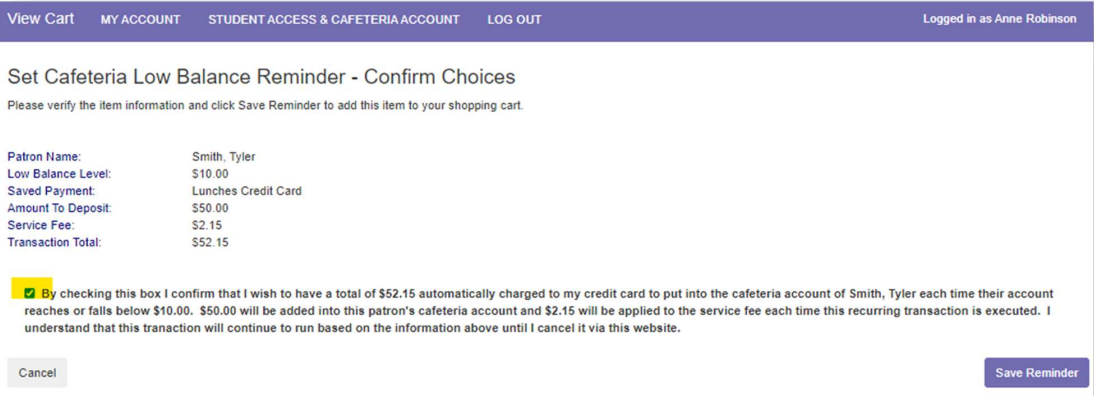
Click Save Reminder.
You’ll be directed to the Cafeteria Low Balance Reminders page.
Here you’ll see the patron name(s) and which reminder option has been applied to each of them.
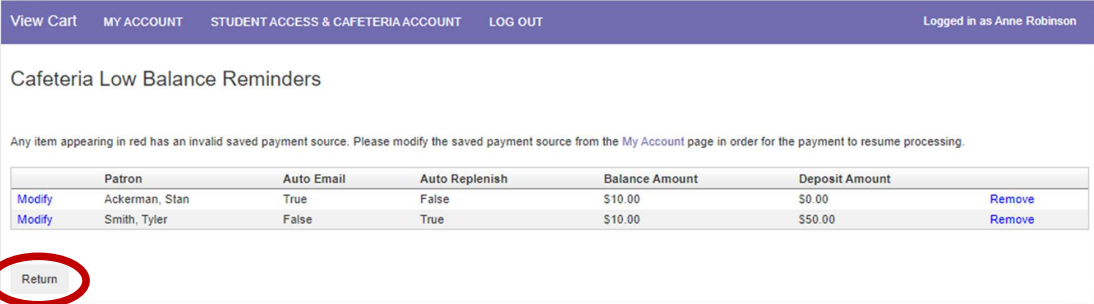
Clicking on the Return button will return you to the Student Access page.